5 HubSpot Workflows for Team Notifications
Revenue Operations
Feb 20, 2026
Automate HubSpot alerts for priority leads, deal stage moves, onboarding actions, abandoned carts, and pipeline health to speed response.
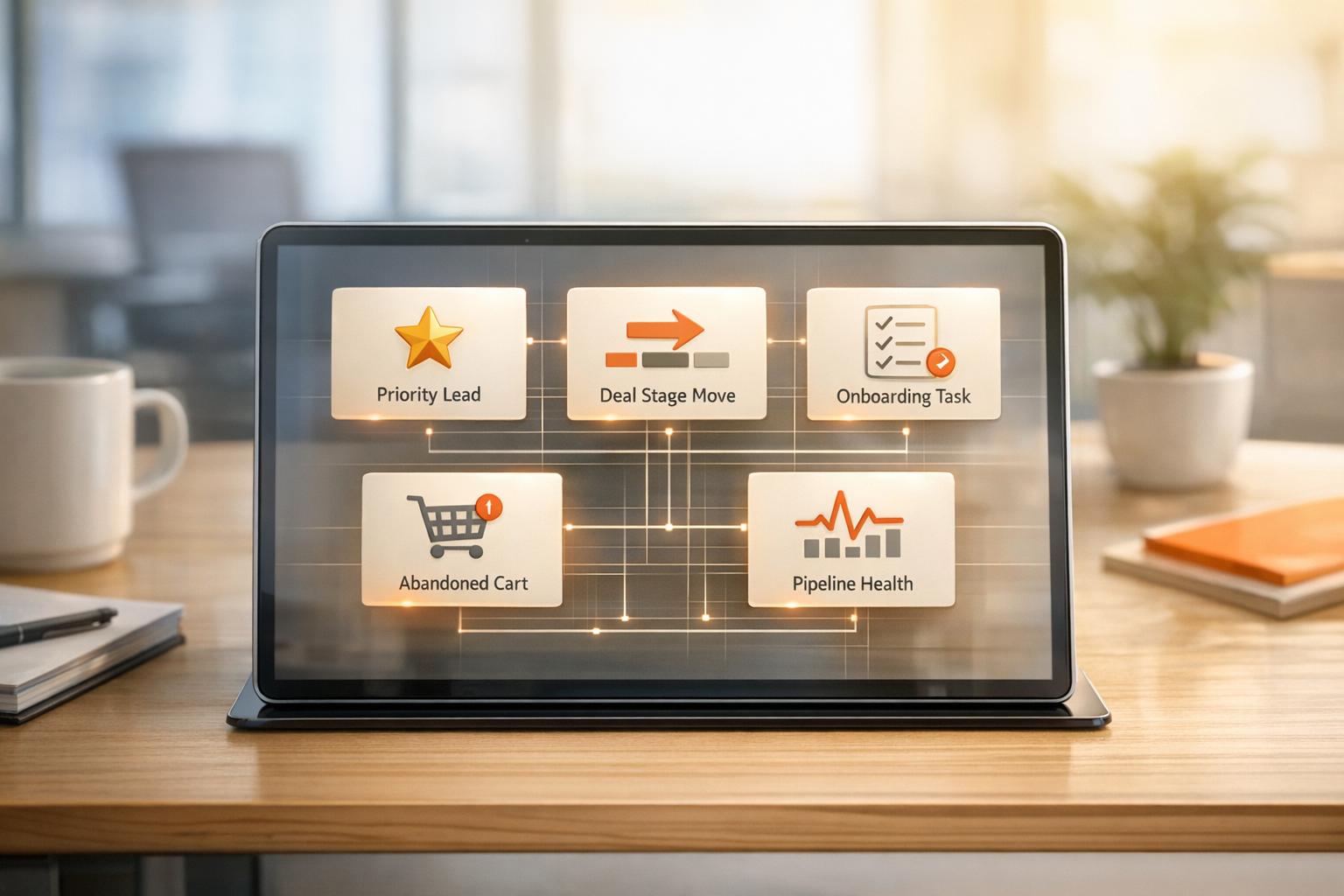
Your team shouldn’t have to constantly monitor HubSpot to stay updated. Custom workflows can automate notifications for critical updates - like high-priority leads, deal stage changes, or customer activity - so your team can act fast when it matters most. Here’s a quick breakdown of five workflows designed to streamline team communication:
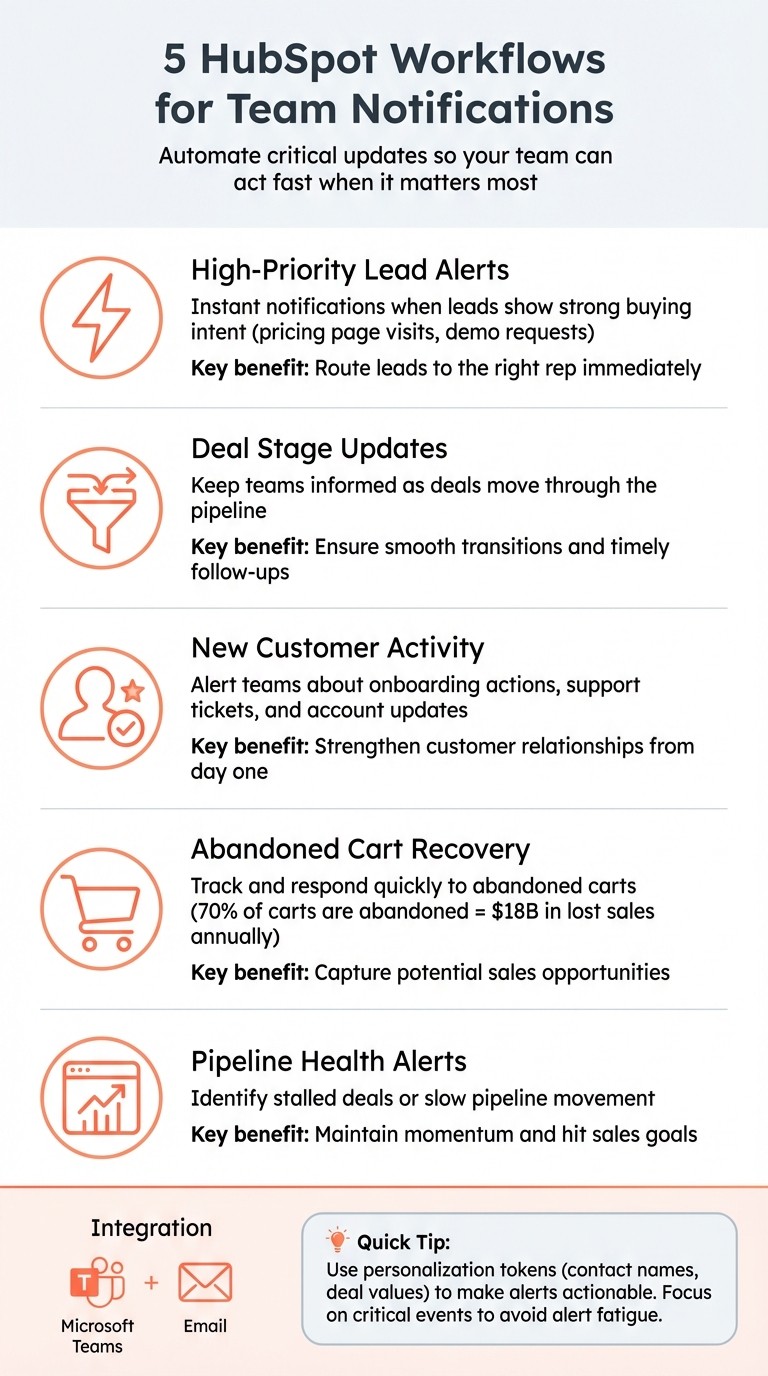
High-Priority Lead Alerts: Notify your team instantly when a lead shows strong buying intent, like visiting a pricing page or submitting a demo request.
Deal Stage Updates: Keep teams informed as deals move through the pipeline, ensuring smooth transitions and timely follow-ups.
New Customer Activity: Alert teams about onboarding actions, support tickets, or account updates to strengthen customer relationships.
Abandoned Cart Recovery: Let your team respond quickly to potential sales opportunities by tracking abandoned carts.
Pipeline Health Alerts: Identify stalled deals or slow pipeline movement to maintain momentum and hit sales goals. Accurate reporting for these alerts often requires regular HubSpot CRM cleanup to ensure data integrity.
These workflows integrate with tools like Microsoft Teams and email, allowing notifications to reach your team where they’re most active. By using automation, you ensure the right people get the right information at the right time - improving response times and internal collaboration.
Quick Tip: Personalization tokens in notifications (like contact names or deal values) provide context, making alerts more actionable. Focus on critical events to avoid overwhelming your team with unnecessary updates.
5 Essential HubSpot Workflow Types for Team Notifications
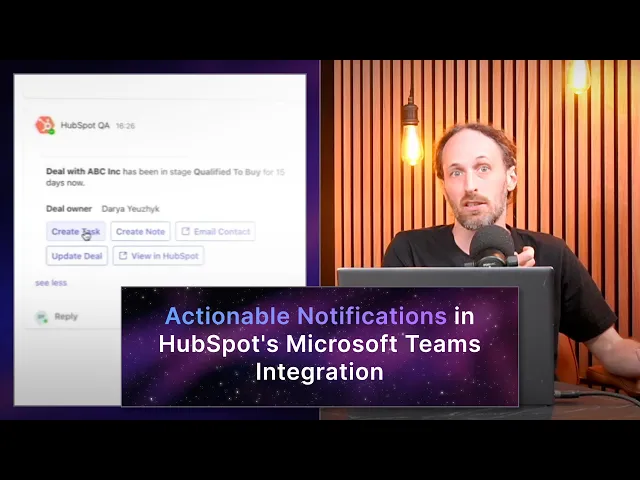
Actionable Notifications in HubSpot's Microsoft Teams Integration
1. High-Priority Lead Assignment Notification
Not all leads demand the same level of urgency. When a target account visits your pricing page or submits a demo request, it’s essential to notify your team right away. This workflow ensures high-priority leads are routed to the right representative while triggering instant alerts across multiple channels.
Automation triggers for timely notifications
Effective lead notifications depend on identifying triggers that truly indicate buying intent. For example, lifecycle stage changes work well - like when a contact moves to "Marketing Qualified Lead." You can refine this further by combining conditions. For instance, set up workflows to enroll contacts when their lead score exceeds 50 and they belong to a target account list. Alerts can also be triggered by specific actions like trial sign-ups or visits to key pages, such as pricing or upgrade URLs.
For even more precise targeting, use property value filters. If your team prioritizes leads based on factors like budget or industry, improve lead generation by configuring workflows to enroll contacts only when these custom properties meet specific criteria. This approach reduces unnecessary alerts and ensures your team focuses on leads that genuinely matter.
Once triggers are set, make sure notifications capture true buying intent.
Integration with collaboration tools (e.g., Teams, email)
Relying on internal emails for alerts can be risky - they often get lost in crowded inboxes. Instead, route notifications to tools like Microsoft Teams, where your team is already engaged. HubSpot’s Teams integration allows you to send alerts to specific channels or tag individual users by typing "@" followed by their email address in the workflow message field. You can even use Markdown syntax to emphasize critical details, such as lead priority or source.
Keep in mind, Teams notifications may take up to five minutes to deliver and won’t work with private channels. For faster delivery or greater flexibility, consider using the "Send internal email notification" action, which allows you to include personalized lead details using tokens.
The goal is to ensure your team receives alerts where they’re most active and responsive.
Customization options for team-specific needs
To match notifications with your team’s workflow, take advantage of customization options. You can route alerts to individual users, entire teams, or dynamically assign them to record owners using the "Rotate record to owner" action. This feature distributes leads via round-robin or load-balanced assignment before sending the alert. However, team notifications only reach primary members. If additional members need to be included, they must be added individually.
For high-value leads, use if/then branches to tailor alerts. For example, send a Teams notification for enterprise prospects while relying on email for smaller opportunities. Additionally, you can leverage the "Summarize record" action, powered by HubSpot's Breeze AI, to provide your team with a quick snapshot of the lead’s history - saving them from digging through the CRM.
2. Deal Stage Change Alert
When a deal moves from "Proposal Sent" to "Negotiation" or finally reaches "Closed Won", it's crucial that your team is informed immediately. These transitions often kick off essential actions - finance teams need to prepare invoices, customer success teams must prevent churn and arrange onboarding calls, and sales managers rely on this information to track pipeline activity. Automated alerts ensure no one misses these key moments.
Automation triggers for timely notifications
To set up notifications for deal stage changes, add a "Communication" action for each stage in your pipeline. For more advanced setups, use a deal-based workflow triggered by "deal stage was updated in the last day".
Re-enrollment is a must; without it, the workflow will only trigger once, even if a deal moves back and forth between stages. Katie Townsend, Senior HubSpot Consultant at BBD Boom, advises:
"I would recommend creating a deal-based workflow with the enrolment trigger 'deal stage was updated in the last day'... and make sure to enable re-enrolment".
This ensures your team gets notified every time a deal progresses or reverts. Once these triggers are in place, you can push alerts directly to your collaboration tools for immediate action.
Integration with collaboration tools (e.g., Teams, email)
Microsoft Teams is a great option for real-time deal alerts. However, keep in mind that notifications may take up to five minutes to arrive and won’t work for private channels. Use the "Send Microsoft Teams Notifications" action to notify specific users, entire teams, or dedicated channels. Include links to HubSpot records using the [Link Text](URL) format, so recipients can quickly access relevant CRM details.
For faster or more detailed alerts, internal email notifications are a solid choice. They allow for personalization tokens to include deal-specific data and can be sent to teams like operations, finance, or marketing, who may need to act on post-sale tasks.
Customization options for team-specific needs
Once your triggers and integrations are set, you can further tailor notifications to fit your team's workflow. For deal-specific alerts, create deep links that take users directly to the property fields requiring updates. Use this structure: https://app.hubspot.com/contacts/[Portal_ID]/deal/[Deal_ID]/properties?search=[Keyword]. This approach saves time by eliminating the need to search through the CRM and helps streamline decision-making.
When activating your workflow, select "No, only enroll deals which meet the trigger criteria after turning the workflow on." This prevents your team from being bombarded with notifications for deals already sitting in that stage. By avoiding unnecessary alerts, you keep notifications relevant and actionable.
3. New Customer Activity Notification
After a prospect becomes a customer, keeping your team informed during the onboarding phase is crucial. Automated new customer activity notifications ensure your team can act quickly during this pivotal stage. Whether a customer submits a support ticket, books a follow-up meeting, or updates their account details, timely notifications help customer success teams, account managers, and support staff respond effectively. This builds strong relationships from the very beginning.
Automation Triggers for Timely Notifications
Automation triggers make it possible to stay on top of customer activities in real time. For instance:
Form Submissions: When a customer fills out a demo request or schedules a meeting, sales or support teams can be notified instantly.
Property Value Changes: Updates like a lifecycle stage shifting to "Customer" or a newly updated NPS score can trigger alerts.
Activity-Based Triggers: Live chats, meeting bookings, or task completions can prompt immediate notifications. For example, if a ticket status changes to "Onboarding", the relevant team members are alerted.
Re-enrollment is another useful feature, ensuring that repeated actions (like multiple form submissions or page views) generate notifications every time. You can also set custom thresholds with calculated properties. For example, you might trigger alerts only if a customer adds a certain number of new users in a given week.
By combining these triggers, you can ensure your team stays informed through integrated collaboration tools.
Integration with Collaboration Tools (e.g., Teams, Email)
Collaboration tools make it easy to relay updates to your team. For example:
Microsoft Teams: Use the "Send Microsoft Teams Notifications" action to alert specific users or teams. Notifications can go through a HubSpot bot or directly into designated channels.
Internal Email Notifications: These offer a fast and flexible way to share updates. By using personalization tokens, you can include key details like the customer’s name, company domain, or ticket status. This ensures your team has all the context they need without digging through the CRM.
Karla Hesterberg from HubSpot highlights the value of personalization in these emails:
"When you include personalization in internal emails... the tokens will automatically refer to the contact who triggers the workflow, not the recipient".
Customization Options for Team-Specific Needs
Notifications can be tailored to fit your team’s structure and workflows. For instance:
Recipient Targeting: Alerts can be sent to individual users, entire teams, or dynamically assigned to record owners (like the Contact Owner or Deal Owner).
If/Then Branching: This allows you to segment recipients based on specific criteria, such as geographic location. For example, Boston customers can be routed to one team member, while London customers are sent to another.
Adding a direct link to the HubSpot record via the "Internal Contact Record" token makes it easy for team members to jump straight into the CRM from the notification. Charles Scott, Founder of ExpertBeacon.com, emphasizes the importance of actionable alerts:
"The best notifications are tied to a clear next step the user can take. Tell your team exactly how to respond to each alert".
Before rolling out your workflow, use the "Test" feature to simulate enrollment and verify that all personalization tokens are pulling the correct data. This step ensures your team receives accurate, actionable information, creating a seamless notification process across every stage of the customer journey.
4. Abandoned Cart Recovery Alert
Abandoned carts are a persistent challenge for eCommerce businesses. On average, 70% of shopping carts are left behind, leading to an estimated $18 billion in lost sales annually. When a potential customer steps away from completing a purchase, it's crucial for your team to act quickly. Automated abandoned cart alerts make this possible by notifying your team in real time, enabling swift follow-ups.
Automation Triggers for Timely Notifications
Platforms like Shopify, BigCommerce, and WooCommerce allow you to set up cart-based workflows that automatically trigger alerts when specific cart activity occurs. For example, event-based triggers enroll customers when they perform an "Abandoned cart" action synced from your eCommerce platform.
For more customized setups, property-based triggers can be effective. These triggers activate alerts when the "Current Abandoned Cart" property changes to "Yes" or when the "Quote Created At" property is updated without a subsequent purchase. For higher-value carts, deal-based triggers can notify your sales team when an "Abandoned Cart Deal" is created in your pipeline - ideal for carts exceeding $200.
Timing is everything. As Abdul Ahad Qureshi from MakeWebBetter points out:
"You cannot deny the fact the person who left you, has shown some purchasing intent and, was interested in your stuff by performing actions on your website".
To avoid disrupting customers mid-checkout, set a delay of 30 to 60 minutes before triggering alerts. Additionally, include unenrollment criteria like "Contact has made a purchase" to stop notifications immediately after a successful transaction. This ensures your team focuses only on unresolved cases, keeping the workflow efficient.
Integration with Collaboration Tools (e.g., Teams, Email)
Once triggered, alerts can be routed through your existing communication tools for quick action. Internal email notifications are a simple and effective way to inform your team about abandoned carts. Personalization tokens let you include details like the customer’s name, cart value, and specific products, making the notification more actionable.
For high-value carts, consider using Microsoft Teams. The "Send Microsoft Teams Notifications" action allows you to send alerts to specific users or dedicated channels, ensuring the right team members are notified promptly.
Karsten Köhler, a RevOps & CRM Consultant, emphasizes the importance of leveraging existing communication tools:
"HubSpot doesn't have any dedicated features for team communication, features are typically related to records... Instead, I would probably use your existing internal channels (Microsoft Teams, Slack, Google Chat, email to the team) to remind everyone of the upcoming tasks".
You can also use webhooks to send notifications to external tools or assign follow-up tasks directly to sales representatives for personalized outreach.
Customization Options for Team-Specific Needs
Abandoned cart alerts can be tailored to fit your team’s structure and priorities. For instance, you can route high-value carts (over $200) to senior sales representatives using IF/THEN branches, while lower-value carts can trigger standard email workflows. Filters like "Billing Country" or "Shipping Country" ensure alerts are directed to the appropriate regional teams.
To provide more context, include product details in the notifications using personalization tokens. Additionally, configure workflows to send alerts only during business hours by enabling the "Run actions at specific times only" setting. This prevents notifications from being sent during off-hours or holidays, ensuring your team remains responsive when it matters most.
If you’re looking to refine and optimize your abandoned cart recovery process, working with experts like HubSpot CRM consultants from Multithread (https://multithread.io) can help you build workflows tailored to your team’s unique needs.
5. Sales Pipeline Health Notification
A sluggish sales pipeline can quietly erode potential revenue. When deals sit idle or progress too slowly, your team needs to be alerted right away. Pipeline health notifications make this possible by automating updates that inform managers and reps when deals require attention or when key milestones are reached. These timely alerts help ensure that stalled deals are addressed promptly, keeping the pipeline moving efficiently.
Automation Triggers for Timely Notifications
Set up triggers to keep everyone informed at the right time. Stage-based triggers send alerts when a deal moves into a specific pipeline stage, making it easier to track high-priority changes. You can also schedule weekly summaries to review overall performance, including new leads and deal progress.
Stagnation alerts are another key tool - they flag deals that have gone untouched for a set period. By using filters for enrollment, these alerts automatically highlight potential bottlenecks. Goal notifications can also be set up to alert your team when volume thresholds are hit, such as reaching 50, 75, or 100 deals in a single month.
Integration with Collaboration Tools (e.g., Teams, Email)
Once a notification is triggered, it's essential to deliver it where your team communicates most effectively. For example, you can use the "Send Microsoft Teams Notifications" action to post alerts directly to specific users or channels, complete with @mentions for added accountability.
Recurring dashboard exports are another option, providing a monthly overview of pipeline activity. Additionally, internal emails can include dynamic tokens like {{deal.amount}} or {{deal.name}} to give team members detailed context about the deals in question.
Customization Options for Team-Specific Needs
To make these notifications even more effective, customize them to fit your team's specific workflow. Conditional logic with if/then branches allows you to create tailored paths for notifications based on factors like deal value, priority, or the stage of the pipeline. Alerts can be sent to individual users, entire teams, or the record owner, depending on the situation.
For teams handling a large volume of deals, recurring dashboard exports can provide a high-level summary without overwhelming team members with constant alerts. Re-enrollment settings can also be configured to notify teams every time a deal stalls, rather than just once. Adding a slight delay - just a couple of minutes - after a trigger ensures all property updates are complete before the notification goes out.
If you want to create advanced pipeline health workflows that align perfectly with your sales process, HubSpot CRM consultants from Multithread (https://multithread.io) can help you design automation that keeps your team ahead of the game and your pipeline flowing smoothly.
Conclusion
Automated alerts are a game-changer for helping your team respond quickly when it matters most. Whether it's a high-priority lead viewing your pricing page, a deal progressing, or an urgent support ticket, these workflows ensure instant notifications keep everyone on track. The result? Faster response times, smoother transitions between team members, and better collaboration across the board.
By incorporating personalization tokens - like contact names, company info, or deal values - into your alerts, you make each notification actionable. This ensures your sales and support teams can engage with customers during critical moments. To avoid overwhelming your team, focus on only the most critical events that demand immediate attention, such as high-value leads, stalled deals, or pressing support issues. Let automation handle the routine monitoring, freeing up your team to focus on what really matters. Plus, with automation running around the clock, your CRM works even when your team isn’t.
These workflows can and should be tailored to fit your sales process, team dynamics, and business goals. If you're ready to take your notification workflows to the next level, Multithread (https://multithread.io) offers expertise in designing custom HubSpot automation. Their specialists ensure your team stays responsive, your pipeline stays active, and your operations run smoothly.
With smart automation delivering timely insights, your team is set up for success, ensuring continuous improvement and efficiency in your processes.
FAQs
How do I prevent notification overload?
Too many notifications can quickly overwhelm your team, making it hard to focus on what really matters. To keep things under control, it’s important to take a few steps to streamline alerts.
Start by limiting notification frequency. Instead of bombarding the entire team, focus on targeting specific members who need the information. For example, only notify sales reps about deal updates or customer service agents about ticket changes.
Next, customize your triggers. Fine-tune alerts so they’re only sent for key actions, like when a deal moves to a new stage or a ticket status changes. This way, the notifications are relevant and actionable.
HubSpot also offers tools to help manage volume. Use features like muting notifications for non-essential updates or scheduling alerts to only go out during work hours. These adjustments help ensure your team stays informed without unnecessary distractions.
When should I enable re-enrollment?
When you enable re-enrollment in a HubSpot workflow, you allow contacts or records to re-enter the workflow if they meet specific conditions again, such as changes in their behavior or updates to their properties. This feature is especially helpful for automating repeated follow-ups or sending multiple notifications - for instance, when a contact revisits your website or modifies their details. Re-enrollment keeps your workflows adaptable and responsive to ongoing engagement.
What tokens make alerts more actionable?
Tokens that make alerts more actionable include personalization tokens, like contact record URLs. These tokens let recipients access relevant details directly from the email, making follow-ups and decisions faster and more efficient.