How to Automate Job Change Alerts in HubSpot
Revenue Operations
Feb 27, 2026
Set up HubSpot properties, active lists, and workflows to detect job changes, trigger alerts, and revive lost opportunities with enriched contact data.

Automating job change alerts in HubSpot helps your sales and marketing teams act quickly when key contacts switch roles. Here's why it matters:
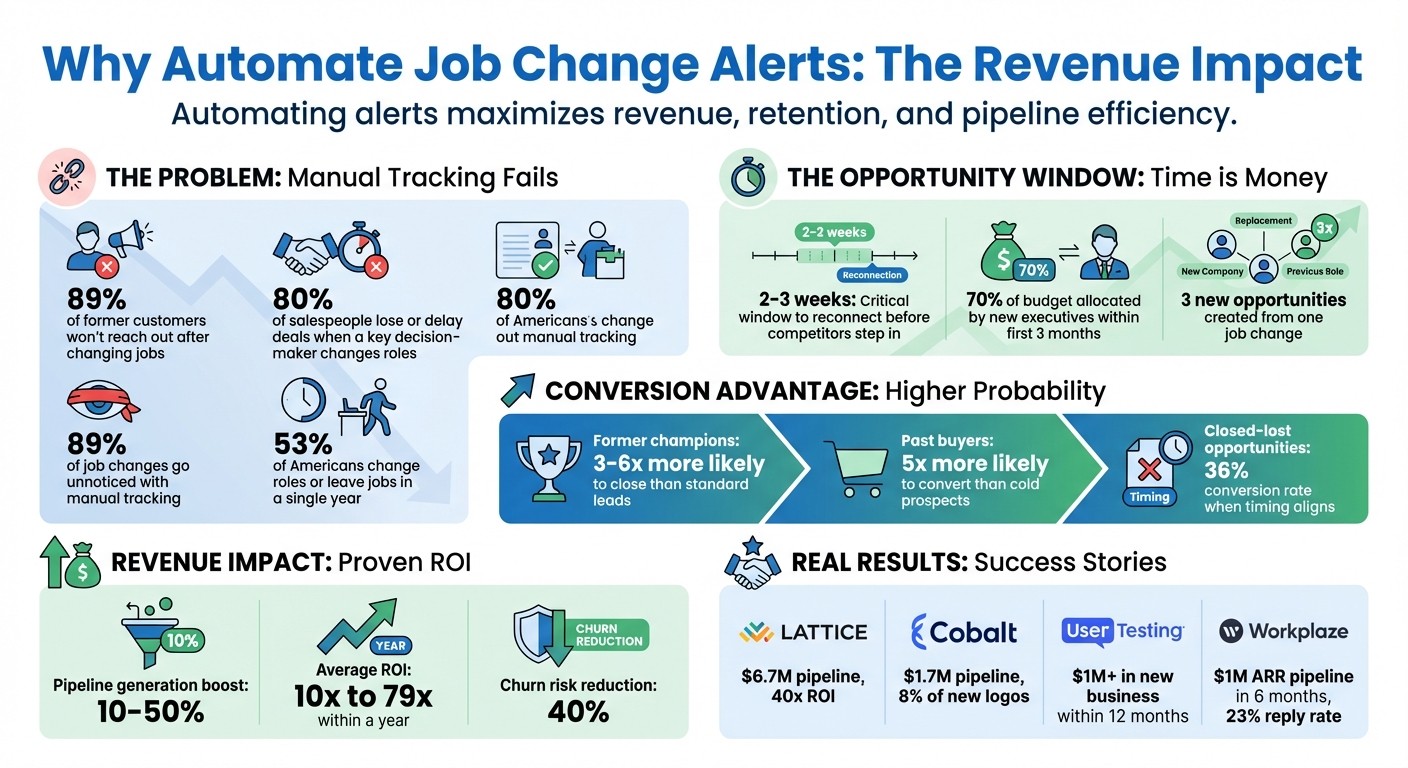
89% of former customers won’t reach out after changing jobs, but they are 5x more likely to convert than cold leads.
New executives allocate 70% of their budget within their first three months, making timing critical.
Companies automating job change tracking see a 10%–50% boost in pipeline generation and higher ROI.
To set this up in HubSpot:
Create custom properties like "Previous Company" and "New Job Title."
Build active lists that dynamically update based on job changes.
Configure workflows to trigger notifications, tasks, and outreach actions when updates occur.
For advanced tracking, tools like Multithread integrate with HubSpot to monitor job changes in real-time, saving time and increasing accuracy.
Acting swiftly on job changes can revive lost opportunities, protect existing accounts, and drive new revenue.
Job Change Automation ROI Statistics and Impact on Sales Pipeline
Automated Job Change Monitoring and Updates for HubSpot
Why Automate Job Change Alerts in HubSpot
Manually tracking job changes on LinkedIn leaves a massive gap - 89% of job changes go unnoticed. This blind spot can cost your sales team high-value opportunities. By automating job change alerts with HubSpot workflows, you can stay ahead. These workflows detect job changes automatically and trigger follow-up tasks. Why does this matter? Because 80% of salespeople lose or delay deals when a key decision-maker changes roles within an account.
Benefits of Timely Job Change Notifications
In sales, speed is everything. When a former customer moves to a new company, you have a short window - just two to three weeks - to reconnect before competitors step in or the opportunity disappears.
Timely notifications let you reach out during these transitions, a period when contacts are actively exploring new solutions. With 53% of Americans changing roles or leaving jobs in a single year, the real challenge isn’t finding opportunities - it’s acting on them before they’re gone.
There’s also a ripple effect to consider: one job change can create three new opportunities. You can pitch your former contact at their new company, engage their replacement at the old company, and possibly connect with the person filling their previous role. Acting quickly on these transitions can lead to measurable revenue gains.
Impact on Lead Generation and Revenue
The impact on revenue is striking. Companies that automate job change tracking see a 10% to 50% boost in pipeline generation and achieve an average ROI ranging from 10× to 79× within a year.
Take Lattice, for example. By tracking HR administrators as they switched jobs, they generated $6.7 million in pipeline with a 40× ROI. Cobalt followed a similar strategy and created $1.7 million in pipeline, accounting for 8% of all new logos. UserTesting also benefited, closing over $1 million in new business within 12 months by targeting users who had left existing customer accounts.
The numbers speak for themselves: former champions and power users are 3 to 6 times more likely to close than standard leads, and past buyers convert into revenue five times more often than cold prospects. Even opportunities that were previously closed-lost can be revived; 36% of them convert when the timing aligns, such as when a decision-maker moves to a better-fit company.
Automation also safeguards your current revenue. When a key product owner leaves an existing customer account, automated alerts allow Customer Success teams to act fast, engaging the remaining team to prevent churn and protect recurring revenue. This defensive strategy is just as crucial as generating new opportunities.
Setting Up HubSpot for Job Change Alerts
Before automating alerts for job changes, you need to configure HubSpot to track and manage this data effectively. This involves creating custom properties to store job change details and setting up active lists that automatically update as contacts switch roles. These steps ensure your workflows are triggered using accurate, up-to-date information.
Create Custom Properties for Job Change Data
Start by navigating to Settings > Properties, selecting the Contact object, and clicking Create property. Here’s what you’ll need to set up:
Use Single-line text fields for "Previous Company" and "New Job Title."
Add a Date picker for "Job Started Since" to track when the new role began.
HubSpot’s Data Enrichment feature can also fill in standard fields like "Job Title", "Employment Role", and "Employment Seniority" using its dataset. To enable this, configure the Data Enrichment "Job Title" mapping to both fill empty values and overwrite existing ones. This ensures job titles stay current.
Important note: Data enrichment only works for business email addresses. Personal emails, such as Gmail or Yahoo, won’t trigger updates. Additionally, enable the Track changes option for the "Job Title" property by hovering over it in settings. This logs when role changes occur and who made updates in your CRM.
Property Name | Field Type | Purpose |
|---|---|---|
Previous Company | Single-line text | Records the contact's former employer |
New Job Title | Single-line text | Captures the contact's current role |
Job Started Since | Date picker | Tracks when the new position began |
Employment Seniority | Dropdown select | Indicates level (e.g., Manager, Director, VP) |
Employment Role | Dropdown select | Defines the function (e.g., Sales, Marketing) |
After setting up these properties, you can monitor changes dynamically with active lists.
Build Active Lists for Job Change Tracking
Once your custom properties are ready, create active lists to track job changes in real time to identify when customer champions move to new companies. These lists automatically update based on your criteria, adding or removing contacts as needed. To set one up, go to CRM > Segments and click Create segment. Select Contact-based and choose Active segment.
Set filters to identify recent job changes. For instance, use "Job Title has been updated in the last 30 days" or combine multiple criteria with AND logic, such as "LinkedIn Profile URL is known" and "Job Title was updated in the last 30 days." You can also include a filter like "Has been enriched = True" to focus on contacts with recently updated professional data.
To track individuals who’ve left their previous companies, create a custom property like "No longer at company" and set it to True when a job change is detected. Then, build a list that filters based on this flag. This allows you to retain historical data while keeping insights from past interactions intact. With active segments supporting up to 250 filters, you’ll have plenty of options to fine-tune your targeting.
Configuring Job Change Workflows in HubSpot
Once you've set up your custom properties and active lists, you're ready to create workflows that automatically respond when contacts change jobs. This involves configuring triggers, defining follow-up actions, and fine-tuning settings to ensure everything runs smoothly over time.
Define Workflow Triggers for Job Changes
Start by navigating to Automations > Workflows, then select Create workflow. Choose Contact-based and From scratch to begin. For enrollment triggers, use custom properties like "Job Title has been updated" and "Company Name is known", combining them with AND logic. This ensures only contacts with accurate, updated job information are enrolled in the workflow.
Important: Enable re-enrollment for key properties such as "Job Title" to capture any future job changes. Go to the Settings tab within the enrollment trigger panel, toggle the Re-enroll option to "On", and select the specific properties that should trigger re-enrollment. Without this, contacts can only enroll once, which might cause you to miss subsequent job changes. HubSpot retains workflow enrollment history for 6 months and stores historical data for 2 years or more.
Once your triggers are set, it's time to define the actions that will follow.
Add Workflow Actions for Follow-Up
After configuring the triggers, add actions to ensure timely follow-up. Click the + icon to add workflow actions such as:
Create task to assign a follow-up to the contact owner.
Send internal email notification to alert your sales team.
Enroll in a sequence (available with Sales Hub or Service Hub Enterprise) to initiate personalized outreach.
Delay actions, like waiting 2 days before sending outreach, to make automation feel more natural.
If/then branches to route contacts based on their new job title or company size - for example, assigning VP-level contacts to senior account executives and managers to business development representatives.
Edit records to update properties like "Lead Status" or "Lifecycle Stage" to reflect the new opportunity.
A well-structured workflow could include sending a Slack notification to the account owner, creating a follow-up task, and enrolling the contact in a sequence - all triggered by a single job change. Use personalization tokens in notes and emails to include details like the contact's name, previous company, and new role.
To keep your workflows running effectively, follow these best practices.
Best Practices for Workflow Management
Before publishing, test your workflow using the Test feature to simulate the contact flow and review enrollment estimates. Use Test criteria to confirm whether current contacts meet your enrollment triggers.
Set unenrollment triggers to remove contacts who no longer meet the criteria or have achieved a specific goal, like booking a discovery call. This helps prevent redundant notifications and keeps the workflow efficient. For complex workflows with multiple branches, use the workflow minimap to quickly review your structure and make adjustments as needed.
HubSpot keeps workflow action logs for 90 days. Regularly review these logs to troubleshoot issues like enrollment failures or timing delays. Also, ensure the user creating the workflow has "Edit" and "Publish" permissions to avoid access issues.
Using Multithread for Job Change Alerts
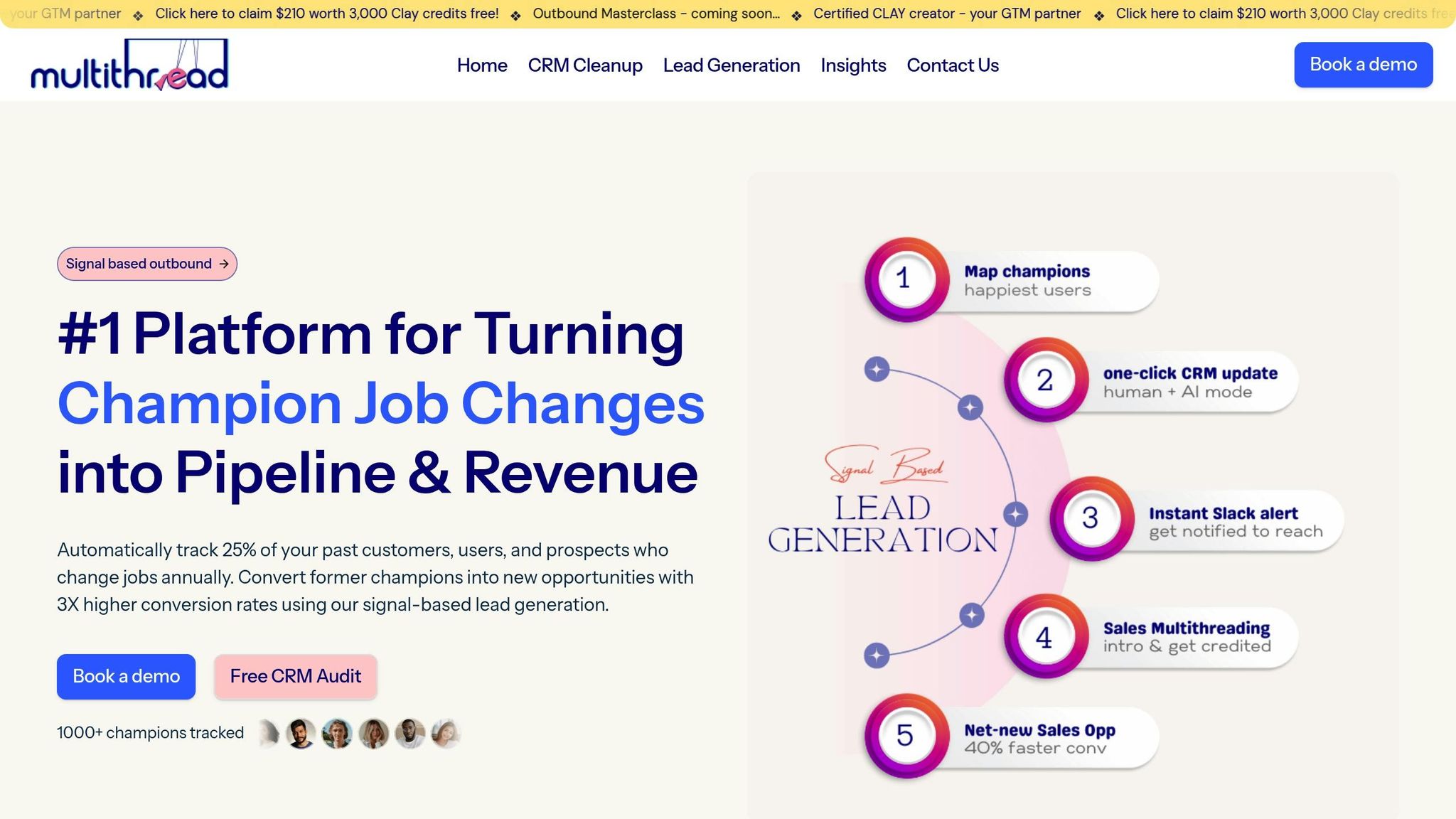
HubSpot workflows simplify job change alerts by automating what would otherwise be a tedious manual process. Multithread's Champion Job Change Signal takes this automation to the next level. By tracking high-value contacts across 30+ data sources in real time, it ensures updates are automatically synced into HubSpot, keeping your data fresh and actionable.
Benefits of Multithread's Champion Job Change Signal
Multithread builds on HubSpot's automation by offering real-time monitoring of contacts with an impressive 95% data accuracy rate. Instead of waiting weeks for updates, job changes are detected within hours. When a champion transitions to a new company, Multithread uses a combination of human and AI intelligence to identify the buying committee at their new organization. It also enriches account data with firmographics, saving your team from hours of manual research.
Harish Mohan, CEO and Founder of Workplaze, shared how this tool helped his team generate $1M in ARR pipeline within just six months, with an impressive 23% reply rate on job change campaigns.
"Champion tracking generated $1M ARR in pipeline in just 6 months. The 23% reply rate from job change campaigns is incredible compared to cold outreach." - Harish Mohan, CEO & Founder, Workplaze
Multithread also reduces churn risk by 40% by alerting Customer Success teams when key stakeholders leave their roles. Former champions are three times more likely to convert compared to cold prospects. Additionally, new executives tend to allocate 70% of their budget within their first three months, making timely action essential.
Vivek Srivastava, Co-founder and COO of Platterhub AI, highlighted the efficiency gains his team experienced. Multithread's automated research saved them 20 hours per week and cut data enrichment costs by 15 times.
"We cut our data enrichment costs by 15x while improving accuracy. The automated research alone saved our team 20 hours per week." - Vivek Srivastava, Co-founder & COO, Platterhub AI
These features ensure a smooth integration process with HubSpot while delivering measurable results.
How to Integrate Multithread with HubSpot
Setting up Multithread with HubSpot is quick and straightforward. By connecting your HubSpot CRM and enabling calendar sync, you can activate real-time updates in under 30 minutes and have the system fully operational within 24 hours. Once integrated, Multithread automatically updates contact records in HubSpot whenever job changes are detected, triggering the workflows you’ve already set up.
The platform also integrates seamlessly with Slack and outreach tools like Instantly to ensure alerts reach your sales team without delay. For example, when a champion moves to a new role, you can set up personalized Slack notifications or create HubSpot tasks automatically.
To get the best results, focus your tracking on former customers, active product users, closed-won decision-makers, and late-stage lost opportunities. Multithread offers three pricing tiers to suit different needs:
Startup: $125/month for tracking 500 champions
Unicorn: $499/month for tracking 3,000+ champions
Enterprise: Custom pricing for tracking 10,000+ champions
These options make it easy to scale your tracking efforts as your business grows.
Testing and Monitoring Job Change Alerts
Once your workflows are set up, the next step is to ensure they work as intended. Testing is crucial before activating anything live. HubSpot offers two key tools for this: Test criteria, which checks if enrollment triggers are functioning, and the Test feature, which simulates how contacts progress through workflow actions. These tools are included in Professional and Enterprise subscriptions for Marketing Hub, Sales Hub, Service Hub, Data Hub, and Smart CRM.
Run Workflow Tests with Sample Contacts
To start, head to the Enrollment Triggers box, click "Test [object]", and select a sample contact. If the contact qualifies, you'll see a green panel; if not, a red panel will appear. This step confirms your filters are set up properly before automation begins.
Next, use the Test feature to simulate the workflow without triggering actual actions. HubSpot will show the contact's path in green, complete with simulated timestamps. If your workflow includes branching logic - like separate paths for "Champion" versus "Standard" moves - you can preview outcomes for different branches. For workflows involving email actions, you can use the "Send preview" option to send a test email to yourself instead of the contact.
If a test contact meets the criteria but doesn't enroll, double-check your re-enrollment settings and timing configurations to ensure everything is aligned.
Monitor Task Queues and Notifications
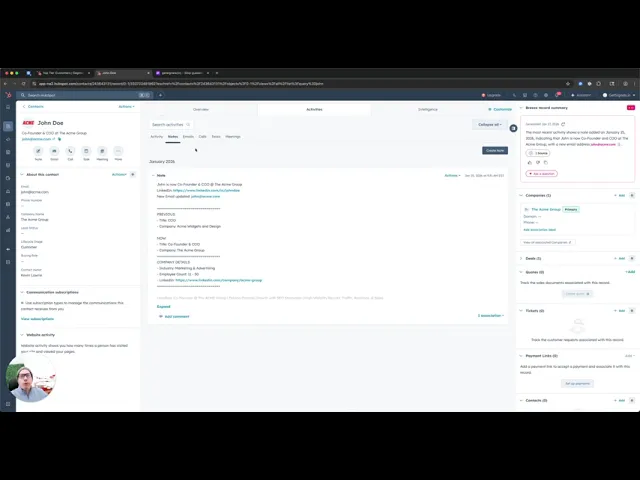
Once your workflows are live, you’ll need to monitor their performance. Create custom HubSpot views to track key results, such as contacts flagged as "No longer at company" or newly created contacts. Include fields like "Job started since", "Previous Company", and "Previous Title" to keep everything organized.
On individual contact pages, review timeline events to confirm that job changes are being logged correctly. This audit trail shows exactly when and how lead data was updated. Additionally, enable the "Metrics" setting in your workflow to track important data like enrollment counts, action execution rates, and branch conversion rates. For more details, hover over specific actions and click "Matching enrollments" to see which contacts reached each step in the process. Keep in mind that some performance data may take a few hours to update after a contact unenrolls.
Conclusion
Automating job change alerts in HubSpot transforms how you approach lead generation. With this setup, your CRM can quickly flag high-intent opportunities, ensuring you're ready to act. Reaching out to former buyers in their new roles boosts conversion rates, but it often requires a proactive approach to reconnect effectively.
Timing is everything. New executives tend to allocate 70% of their budget within the first 100 days, making immediate outreach after a job change absolutely crucial. Automated workflows guarantee your team connects during this critical window, rather than missing the mark weeks or months later.
For tracking external job changes, specialized tools are a must. Solutions like Multithread seamlessly integrate with HubSpot, keeping tabs on LinkedIn profiles, identifying outdated records, enriching contact details, and triggering follow-up tasks - all while keeping your data clean and organized.
Businesses that adopt job change automation often see pipeline growth jump by 10% to 50%. By automating repetitive tasks, your sales team can focus on meaningful conversations with prospects who already recognize the value of your solution.
Use the workflows in this guide as a starting point. Test, refine, and track your progress. With tools like Multithread integrated into HubSpot, you can turn every job change into a chance to drive revenue and make your CRM a true growth engine.
FAQs
Which HubSpot subscription do I need for job change workflows?
To create job change workflows in HubSpot, you'll need a subscription that includes automation capabilities. This typically means having Marketing Hub Professional or Enterprise or Service Hub Professional or Enterprise. These plans provide access to workflows, automation tools, and custom properties. For the most accurate and up-to-date details about these plans, check HubSpot's feature list or reach out to their support team directly.
How can I track job changes if my contacts use personal emails?
To keep tabs on job changes for contacts using personal emails, prioritize adding LinkedIn URLs to their profiles. Leverage tools that monitor LinkedIn updates and configure automated alerts in HubSpot. By focusing on LinkedIn activity instead of relying on email updates, you gain precise, real-time insights into career transitions.
How do I prevent duplicate alerts when a contact updates their job info multiple times?
To prevent duplicate alerts when job information is updated multiple times, it's essential to use deduplication strategies. Start by cleaning your data and merging any duplicate entries. Introduce custom properties such as "Previous Company" or "Job Change Date" to help differentiate updates. Automating workflows to monitor and track only significant changes ensures that alerts are triggered exclusively for meaningful updates. This approach minimizes redundant notifications and keeps your data accurate and actionable.